

Move from a paper booking diary without disrupting service
A practical changeover for restaurants and pubs: set up your tables and hours, copy every future booking across, check the copy, then switch to one book. With screenshots from the owner demo.
Home › Moving from a paper diary
By TableTango · Last checked 17 November 2026
The short answer
Pick a quiet changeover day. Set up your tables and opening hours to match the diary, then copy every future booking across with its notes, ticking each one off. Have someone else check the two books match, date by date. From the moment you switch, take every new booking in the new system only, and keep the paper diary for reference.
Pick a changeover day, and one moment to switch
Choose a quiet weekday rather than the day before your busiest weekend, so there is time to copy bookings across and check them. Decide the moment when new bookings stop going into the paper diary and start going into the new system, and tell everyone who answers the phone.
In TableTango: your 30-day trial starts when you publish your booking page, not when you sign up, so you can set everything up and copy bookings across first.
Set up your tables the way your diary names them
Use the table names your team already writes in the diary, such as T4 or Window 2, and the real number of seats at each. If you push tables together for bigger parties, note which ones. A book that matches the room is what lets the system seat bookings the way you would.
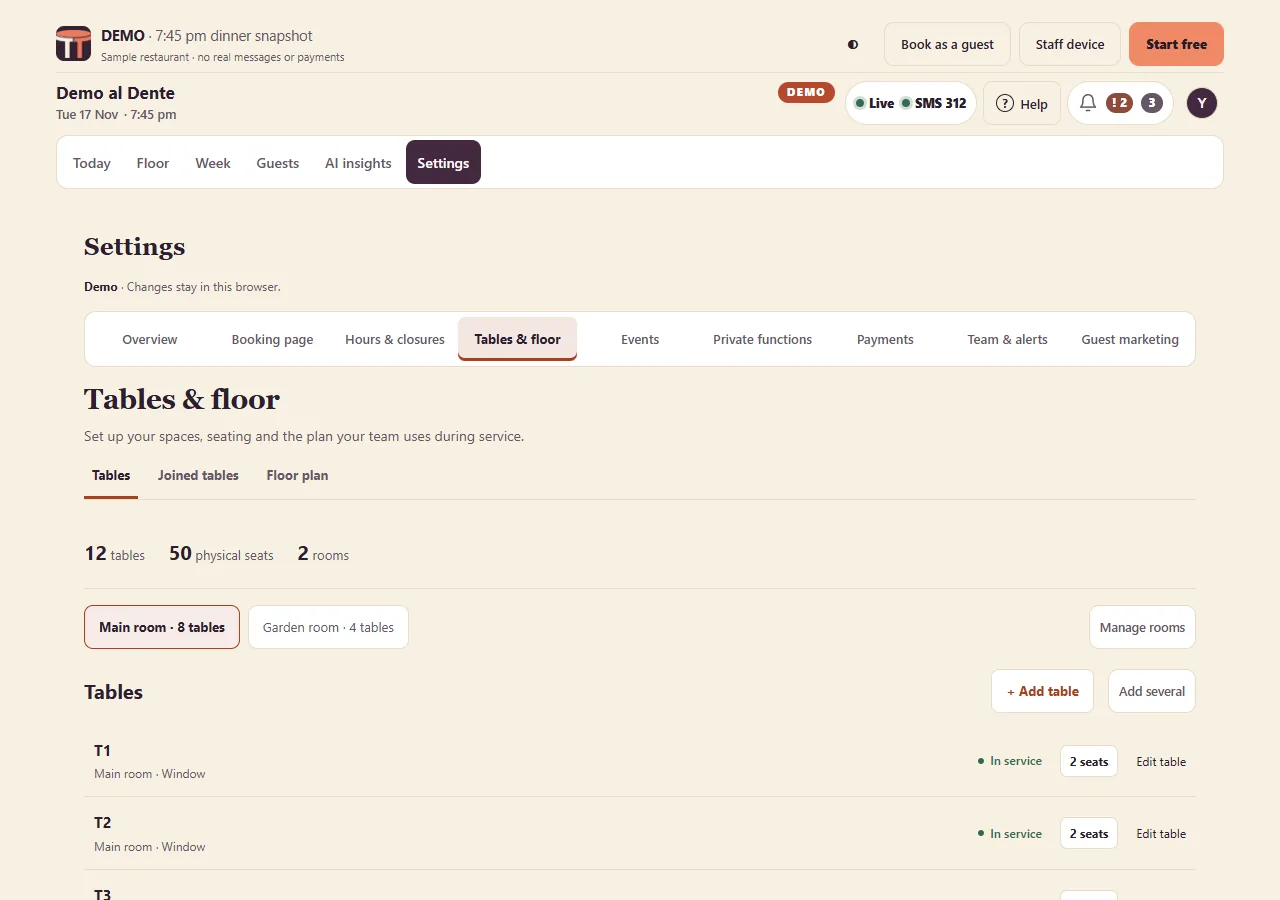
In TableTango: go to Settings > Tables & floor > Tables. Match each table's name and seats, add rooms if you have more than one, and set up the tables you join under Joined tables. Choose These are my real tables if the starting tables are right, then Save changes.
Copy your hours and the dates you are closed
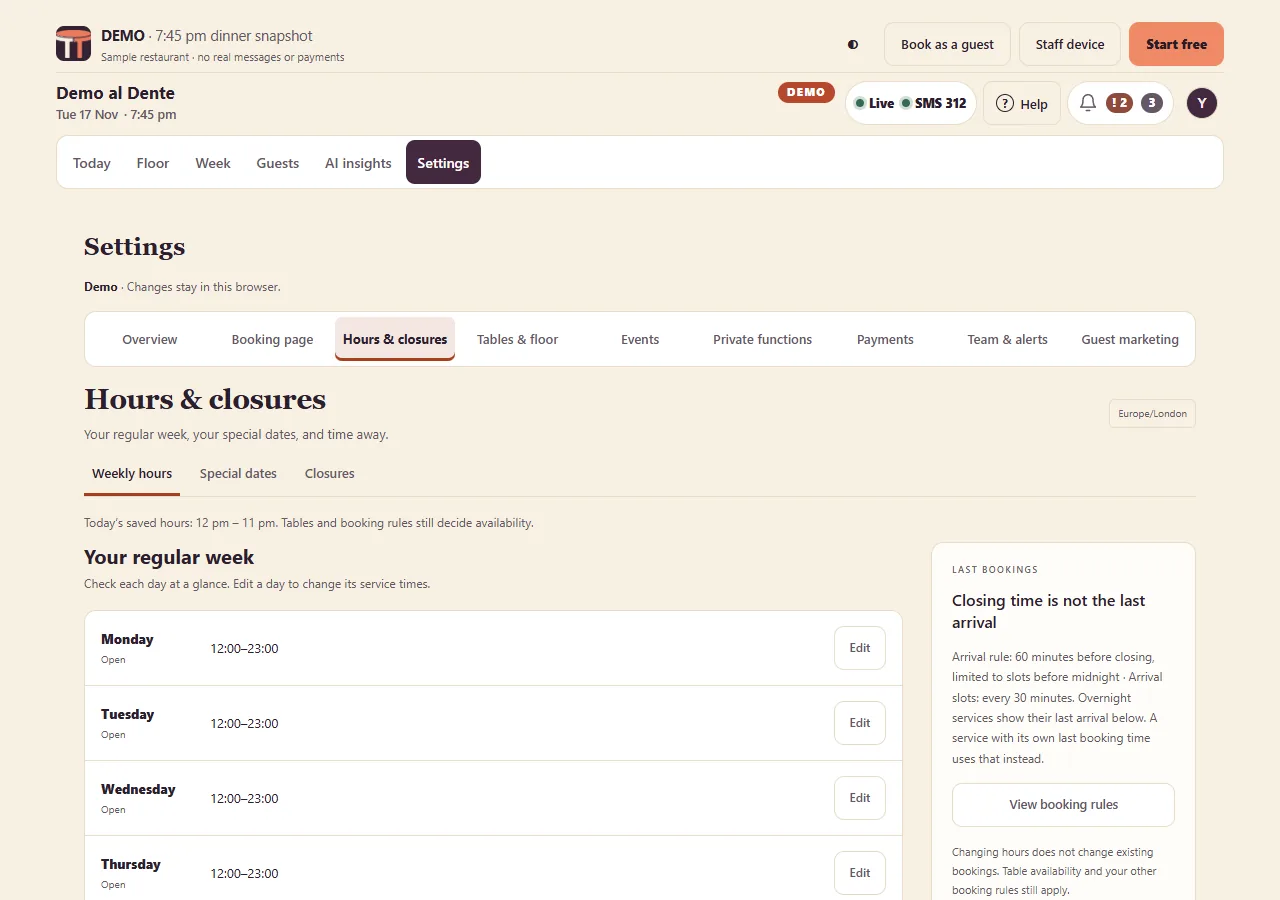
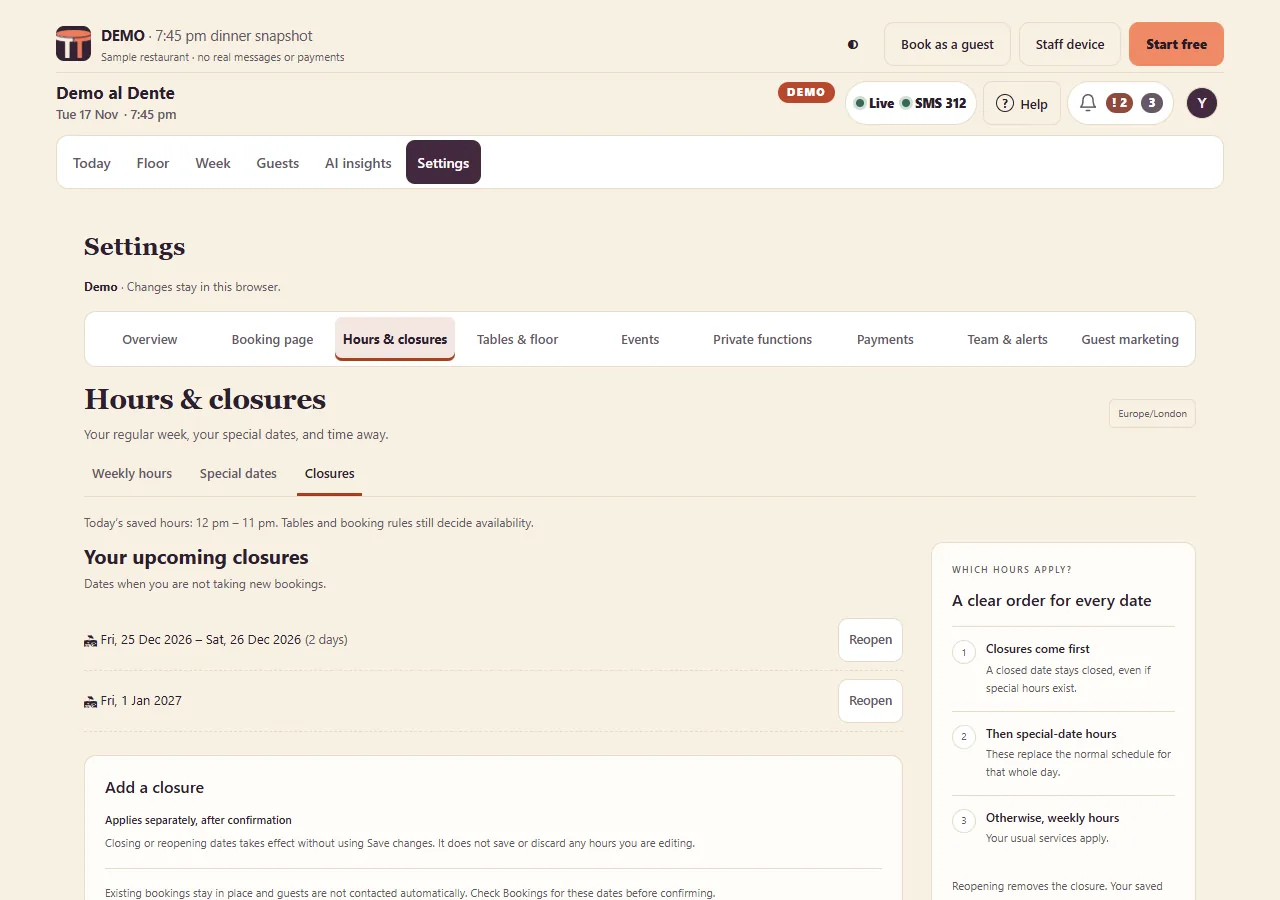
Write down your normal week, including any gap between lunch and dinner, then every date already marked as closed or special in the paper diary: holidays, private hire, Christmas hours. Set these before you copy bookings, so the new book shows the same availability as the old one.
In TableTango: go to Settings > Hours & closures. Use Weekly hours for your normal week, Special dates for a day with different hours, and Closures for days you are shut. A closure does not cancel bookings already on that date, and guests are not contacted automatically.
Copy every future booking across, one at a time
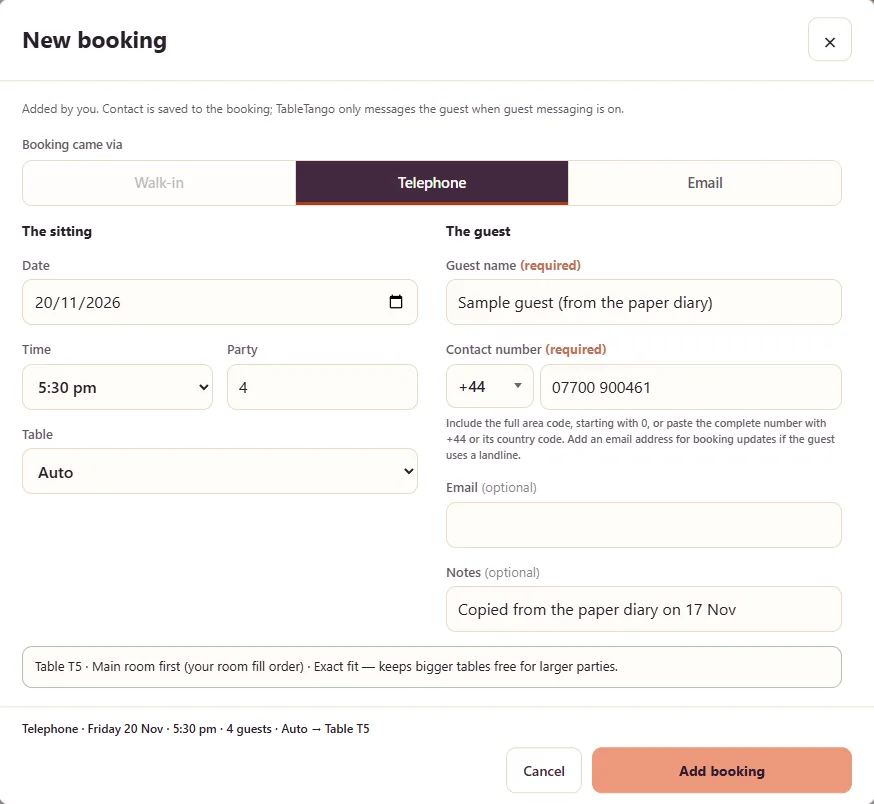
Count the future bookings in the diary first, so you know how long the job is. Then work through it date by date, ticking each booking in the paper diary as you copy it. Copy the notes as well as the name and time: allergies, high chairs, birthdays and anything a guest was promised. If the new book says no table fits, stop and check: the paper diary may have been overbooked, or a table may be set up differently.
In TableTango: use + New booking and choose Telephone or Email for how the booking came in. Add the date, time, party size, the guest's name and a contact number, and put the diary notes in Notes. Leave Table on Auto to let TableTango choose one in your room order, or pick the table written in the diary. Copying a booking uses the normal guest messages; it is not a silent import. Guest emails do not go out before your booking page is published. Once you are live, guests can receive the usual confirmation and, where eligible, a reminder the day before. During the trial or on Paid, texts can also go to mobile numbers when texts are turned on. Check your messaging settings before you save, and contact us first if you want to move bookings without sending new messages. There is no import for bookings; if you have a guest list to bring across, the starter guide explains what we can assess for you.
Check the copy against the paper
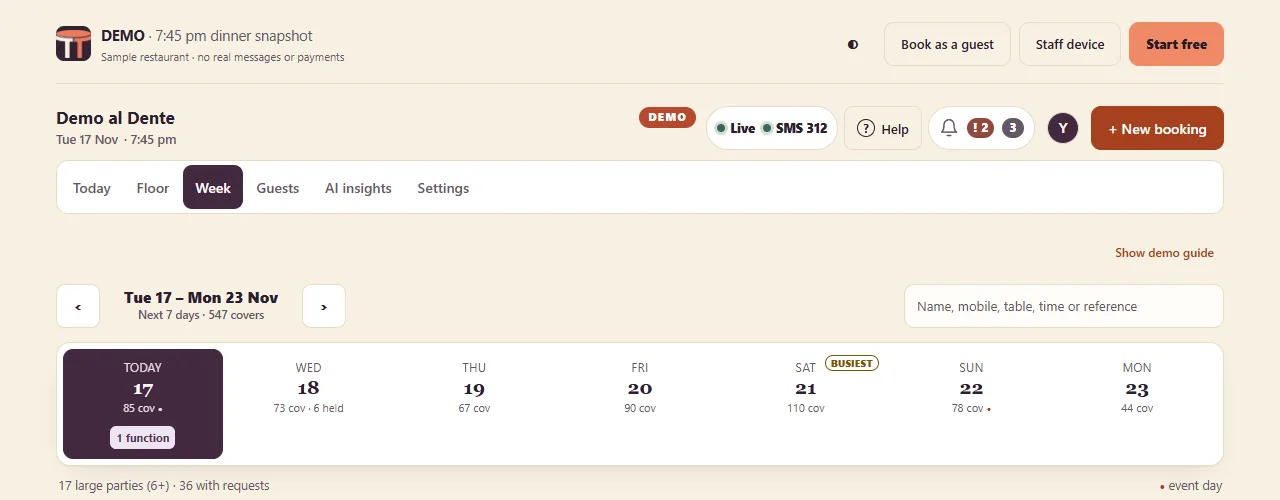
When everything is copied, have a second person compare the two books day by day: the number of bookings and covers on each date, and a few names at random. It is much easier to fix a missed booking now than at the door.
In TableTango: the Week view shows the next seven days with the covers booked on each, and the search box finds a booking by name, mobile, table, time or reference.
Switch to one book
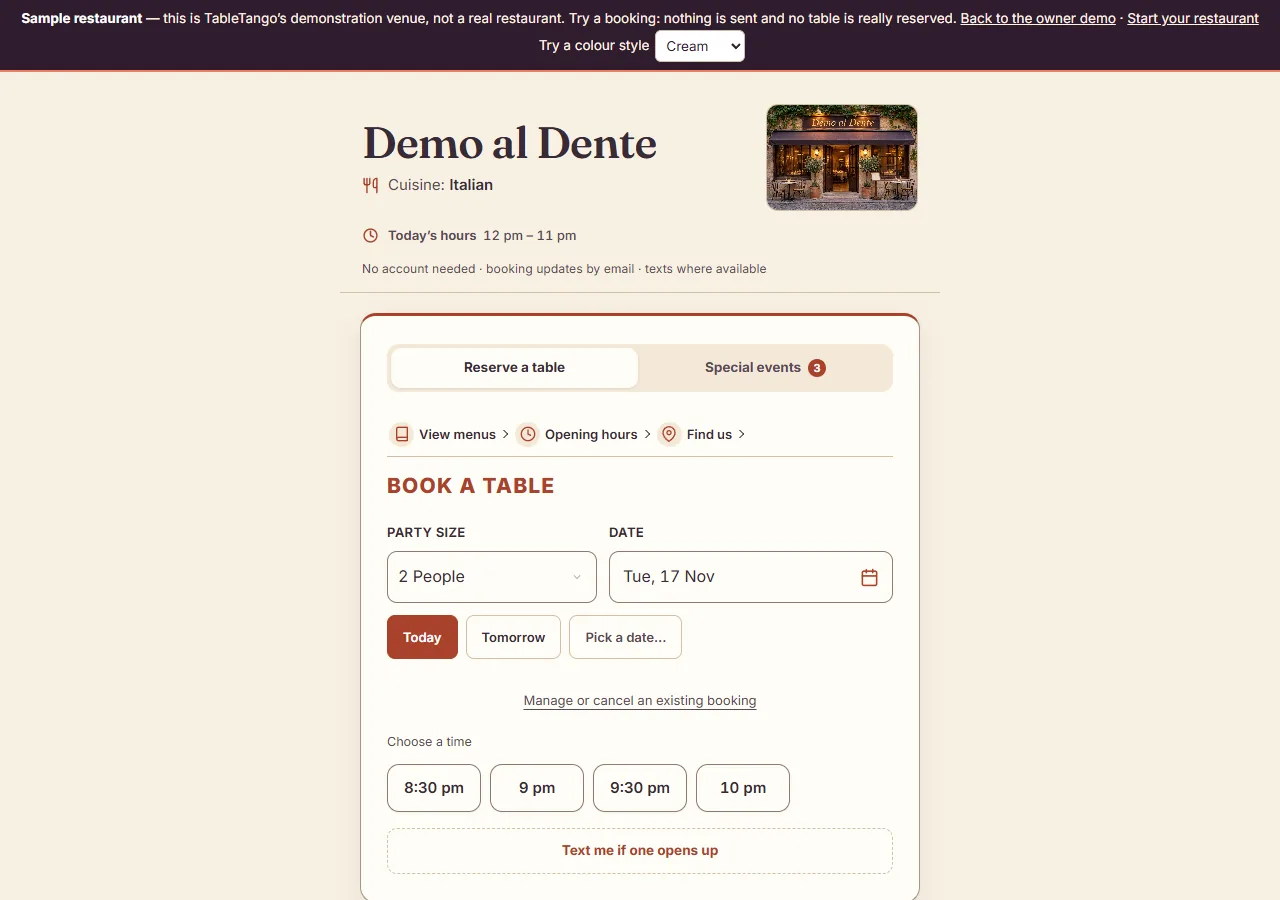
From your changeover moment, every new phone booking and walk-in goes straight into the new system, and nothing new goes into the paper diary. Two books for new bookings is how double-bookings happen. Keep the paper diary somewhere safe for reference until the dates in it have passed.
In TableTango: phone bookings, walk-ins and online bookings all go into the same live book, with no booking allowance on Free. Before you publish, preview the guest booking page; then choose Review & publish and share your link on your website, Google Business Profile and social pages when you are ready to take online bookings.
Get the team ready before the first service
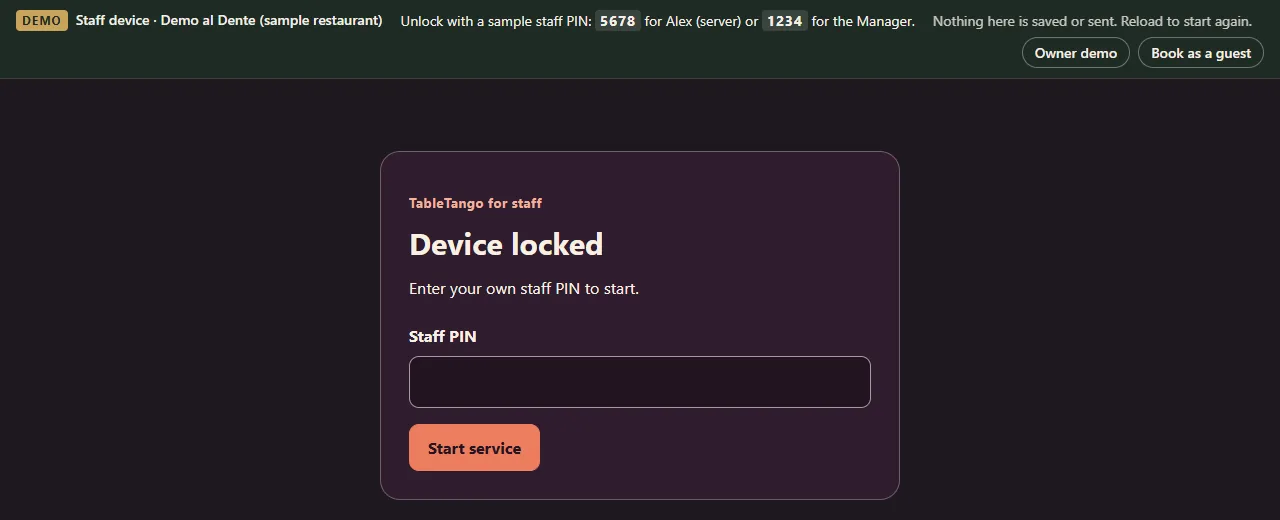
Show everyone who takes bookings how to add a phone booking and a walk-in, and where to find today's bookings. Agree who checks the book before each service.
In TableTango: a tablet or phone at the front desk can be a staff device that shows Today, Floor, Week and Help without your owner sign-in. Each person unlocks it with their own staff PIN. Free includes one paired staff device; the starter guide shows how to set it up.
Changeover checklist
- Choose a quiet changeover day and the moment new bookings stop going into the paper diary.
- Set up your tables with the names and seats your diary uses, and the tables you join.
- Set your weekly hours, special dates and closures before copying bookings.
- Count the future bookings, then copy each one, with its notes, ticking it off in the diary.
- Check how copied bookings will message guests before you save them: leaving the email blank does not stop texts during the trial or on Paid.
- Have a second person compare bookings and covers for each date.
- From the changeover moment, take every new booking in the new system only.
- Show the team how to add a phone booking and a walk-in, and set up the staff device.
Frequently asked questions
Can we import our bookings instead of typing them?
Not into TableTango. Future bookings are added one at a time with + New booking, which is also a chance to check each one. A guest contact list is different: contact us first so we can agree what can be brought across and how to transfer it securely. That moves contact details only, not bookings.
Should we keep using the paper diary alongside the new system?
Not for new bookings: two books are how double-bookings happen. Keep the paper diary for reference until the dates in it have passed.
Will guests be told that we have changed systems?
Not as a separate announcement. Once your page is live, copied bookings can send the normal booking messages: Free uses email, and during the trial or on Paid, texts can also go to mobile numbers when texts are turned on. Contact us first if you want to move bookings without sending new messages.
Can we do all this on the Free plan?
Yes. Tables, hours, closures, phone bookings, walk-ins and one paired staff device are all on Free, with no monthly or daily booking allowance. Your first 30 days from go-live include the full app.
What if the new system says a table is not available?
Check before you force it in. The paper diary may have been overbooked for that time, a table may be set up with fewer seats than you use, or the tables you push together may not be set up as joined tables yet.
See it for yourself
Try the owner demo to add a practice booking; demo changes stay in your browser and nothing is sent. The starter guide covers the rest of setting up, from your account to going live. Questions? Email hello@tabletango.co.uk.
Swap the paper diary for one live book.
Free with unlimited online bookings. The paid plan, at £9 per venue a month or £90 a year paid upfront, adds AI, texts and payment tools; SMS credit and Stripe fees are separate. No commission, and no contract on the monthly plan. Your first 30 days include everything, free from go-live, with no card to start.
Start 30 days free